Turn it down
with the volume key.
You ran the optical cable because it sounds better. Keep it — and get the volume keys back. No app to open, no remote to find, nothing new to learn.
No card, nothing to sign up for. Notarized by Apple. macOS 14.4 or later.
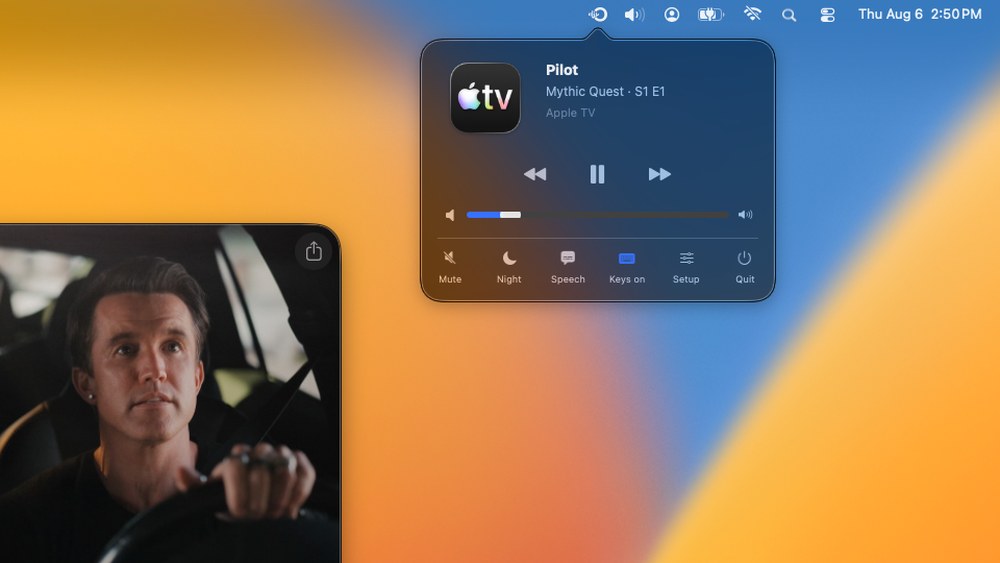
In action
Watch your show.
Skip the delay.
The whole app: a menu bar panel, and three keys that already work the way you expect.
Why the cable is there
You chose optical for a reason.
Optical is the direct path. What comes out of your Mac is what arrives at the speaker — and nothing gets between them. That is worth keeping, and it is the reason this app exists instead of a shrug and a suggestion to go wireless.
Uncompressed, bit for bit
TOSLINK carries linear PCM — the same samples your Mac produced, not a re-encode of them. Nothing is thrown away because nothing has to be, and nothing is reconstructed at the other end.
No network in the audio path
A cable does not care that someone started a backup, that the microwave is on, or that the 5 GHz band is busy. There is no congestion to lose to and no reconnection to wait through. Optically sends the volume over your network, but that is three key presses — never your music, which stays on the wire.
Video actually stays in sync
This is the one that ruins wireless. Sending audio over a network means buffering it, and a buffer is delay — fine for an album, unwatchable for anything with a face in it. Down a wire the sound arrives with the picture, because there is nothing in between to wait for.
If you have not run the cable yet
Plenty of people put up with wireless because they never connected the lag to the cause. If audio drifts behind the picture on your Mac — a film, a call, a game, anything you edit — that is the buffer, and no setting fixes it. An optical cable does, immediately.
The catch has always been that plugging one in costs you the volume keys, which is a miserable trade and the reason most people give up and go back to wireless. It is not a trade any more. What you need to add the output.
The one thing the cable gives up is a way to communicate, and that is the whole of what it ever cost you. Optically hands it back without asking you to downgrade the sound to get it.
No optical port?
Most Macs don’t have an optical port.
Apple dropped the combined headphone and optical jack years ago, so unless you are on an older Mac there is probably no digital output on the machine itself. That is not a problem with your setup — it is one adapter away.
You are looking for one thing on the spec sheet: an optical S/PDIF or TOSLINK output. It shows up in two shapes.
A Thunderbolt dock
If your desk already wants one cable to the Mac for displays, power and ports, get the audio output as part of it. Check the port list for optical or S/PDIF specifically — plenty of otherwise excellent docks do not have it.
A small USB audio interface
Cheaper and does one job: USB in, optical out. It appears in macOS as an output device, and Optically will happily drive the speaker on the end of it — that is exactly how it is developed.
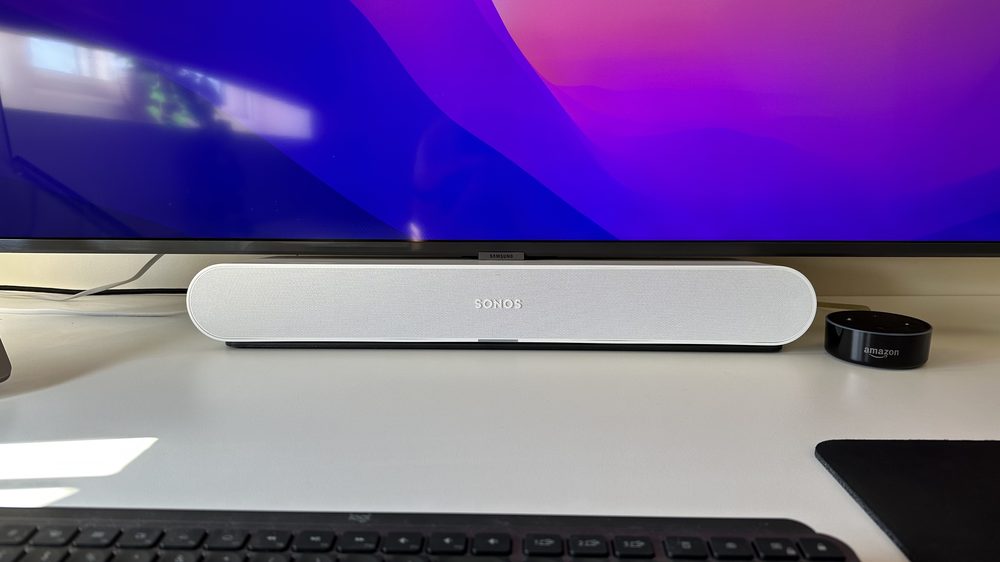
The setup this is for
One cable in.
No way to communicate.
Ones we have checked
-
CalDigit TS3 Plus Thunderbolt dock
A well-regarded Thunderbolt 3 dock; its S/PDIF optical port feeds the speaker directly.
-
Cubilux USB-C to S/PDIF USB-C audio adapter
A small, inexpensive adapter that does one job — USB-C in, optical out — and shows up in macOS as an output device.
-
Hyper HyperDrive GEN2 Thunderbolt dock
A 14-in-1 Thunderbolt 3 dock with a dedicated optical output alongside its ports.
-
iVANKY FusionDock Max 1 Thunderbolt dock
A dual-chip Thunderbolt dock with a dedicated optical output for the speaker.
-
iVANKY FusionDock Max 2 Thunderbolt dock
A Thunderbolt 5 dock with a rear optical output alongside its many ports.
-
iVANKY FusionDock Ultra Thunderbolt dock
A full desk dock — displays, power and ports over one Thunderbolt cable, with an optical output for the speaker.
-
OWC 14-Port Thunderbolt Dock Thunderbolt dock
A 14-port Thunderbolt dock with a dedicated S/PDIF optical output for the speaker.
-
TOTU 18-in-1 Thunderbolt 3 Dock Thunderbolt dock
An 18-in-1 Thunderbolt 3 dock with a dedicated optical output for the speaker.
-
Something else Not listed here
Tell us what is on your desk and we will check whether it has the optical output you need.
Not sure whether what you have will work? Tell us what is on your desk and we will tell you honestly — including if the answer is that you do not need Optically at all.
The alternative
Or you could turn it down like this.
Every one of these works. That is the problem — they all work, and every one of them is more effort than the key you were already pressing.
Open the Sonos app
Find your phone. Unlock it. Wait for it to notice the speaker. Drag a slider. Put the phone down. Now do it again in ten seconds because it is still slightly too loud.
Find the remote
The one for the TV that also happens to drive the soundbar, if it is not down the side of the sofa, and if you are pointing it at the right thing.
Learn a new shortcut
Set up a hotkey in some automation tool, then remember it, then hope it never collides with the app you are actually working in.
Go wireless instead
The volume keys do work over AirPlay — if your speaker has it. But you are then putting the network back in the audio path you deliberately took it out of: buffering, delay against picture, and whatever your Wi‑Fi is doing at the time. A fix that costs you the sound is not a fix.
Or press the volume key ↑
The one you have used since your first Mac. It works the way it always did. There is nothing to learn, because there is nothing new.
The whole interface
Press one.
This is everything there is to learn. The same three keys you have used since your first Mac, doing what they have always done — except the sound is coming out of a speaker down an optical cable.
On your Mac the level comes back from the speaker itself, so the number you see is the speaker's own — not this app's guess at it.
Setting it up
Once. About a minute.
Let it see the keys
macOS handles the volume keys itself, so catching one first needs Accessibility permission. Optically acts on three keys — up, down and mute. It reads no other key and stores nothing you type.
Find your speakers
It asks the local network who is out there, which is the one thing macOS checks with you first. Nothing about what you play ever leaves your Mac.
Pick the one on the cable
Choose the speaker your Mac is plugged into — it usually spots it for you. Then close it and forget it exists.
If you are wondering why
The cable only goes one way.
An optical cable — TOSLINK, S/PDIF — is a pipe for audio and nothing else. No return channel, no handshake, no volume command. So when your Mac sends sound down it, macOS has no idea a speaker is even there. Press volume up and nothing happens, because there is nothing on its end of the cable to turn down.
The volume lives on the Sonos, and always did — the speaker knows perfectly well how to turn itself down. It just had no way to hear you ask. Optically catches those three keys and asks it over Wi‑Fi instead, using the local control Sonos already speaks. The cable keeps carrying the sound; the keys start working again.
That conversation runs both ways. Optically reads the speaker’s level back as well as setting it, so if somebody turns it down in the Sonos app or on the speaker itself, your Mac already knows — the overlay shows what the speaker is actually doing rather than what your Mac last asked for.
What you get
Small, quiet, out of the way.
The keys you already use
Volume up, down and mute — exactly as before. Hold one and it ramps the way it should.
An overlay that tells the truth
The level it shows is the speaker’s own, read back over the network — not a guess about what your Mac thinks it sent.
Only when it should
Tie it to one output and the keys go straight back to normal the moment you switch to headphones or your laptop speakers.
Menu bar, and nothing else
No dock icon, no window in your way, no background updater running when you did not ask for one.
Night mode and speech clarity
On soundbars that have them — a Ray or a Beam, for instance — both are one click from the menu bar, without opening the Sonos app.
Never in the audio path
Your Mac still sends PCM straight down the cable. The app only carries the key press, so it cannot color, resample or delay a single sample.
Uninstalls completely
One menu item removes the app, its settings, its logs, its login item, the license from your Keychain, and every permission it asked you for — Accessibility, Automation and Local Network. What that means.
Pricing
Buy it once.
Subscriptions suck. A volume key does not need a landlord, and software you bought should not stop working because a card expired. Ten dollars, yours, done — the way buying software used to work.
$10
One Mac. Add more for $5 each.
- Not a subscription — nothing renews, nothing lapses, nothing to cancel
- 14 days free first — no card, nothing to sign up for
- Free updates for Optically 1.x
- Move your license between Macs whenever you like
- Add more Macs later — same license, not a second one
- 30-day refund, no questions

You buy it in the app.
No checkout page, no key to copy out of an email. When the trial convinces you, press Buy on the app’s Sign In screen — it opens a secure Stripe page in your browser, and the license lands straight in the app the moment the payment clears.
Download free trial ↓14 days free first — no card, nothing to sign up for.
Privacy
What leaves your Mac, exactly.
No account, no analytics. Nothing about what you play, what you listen to, or what you type ever leaves your machine.
Three things do go out, and this is all of them. An anonymous fingerprint of your Mac, so a 14-day trial is 14 days rather than 14 days per reinstall — it is a one-way hash and cannot be turned back into anything about you. Your email address and your Mac’s name, but only if you buy or sign in, so your license can find the right machines. And a check for a new version, which asks your permission before the first time it runs.
Your license is verified on your own Mac, offline, against a signature. That is deliberate: if this website vanished tomorrow, every copy already sold would keep working. Read the full privacy notice.
Checked by Apple before it ever opens.
Every release is uploaded to Apple's notarization service, scanned for malicious software, and issued a ticket that is stapled to the app and to the disk image around it. Your Mac's own Gatekeeper checks that ticket before the app opens for the first time — even offline. It is not an endorsement; it is Apple confirming this exact file contains what an identified developer submitted and nothing else.
You do not have to take our word for it. After downloading, this prints Apple's own verdict:
spctl -a -t open --context context:primary-signature -v ~/Downloads/Optically-1.2.2.dmg
The answer to look for: accepted — source=Notarized Developer ID.
Questions
The ones people actually ask.
Do I need this if my Sonos is already on Wi‑Fi?
Only if your Mac feeds it down a cable. Playing to a Sonos over AirPlay already carries volume for you. Optically is for the case where the audio leaves a physical optical or S/PDIF port — a soundbar under a TV, a desk setup through an interface — and the keys go nowhere.
Which Sonos speakers work?
Volume and mute work with any Sonos on your network that accepts local control. Where they differ is the socket. A Ray, Playbar or Playbase has a built-in optical input, so a cable goes straight in — the Ray is what this was built and tested against. A Beam has no optical port but ships with Sonos’s optical adapter, which is the route in. An HDMI-only soundbar needs Sonos’s Optical Audio Adapter between the cable and the speaker, which is a separate purchase unless your model included one. Not sure? Ask us about your exact setup before you buy — we would rather answer than refund.
Is it safe to install something that watches my keyboard?
The question to ask of any app that wants Accessibility access — so here is what you can verify rather than trust. Every release is notarized by Apple: scanned by Apple's service and ticketed before it ships, with Gatekeeper re-checking that ticket on your Mac before first launch. The app requests no entitlements beyond the permission you grant by hand, which you can confirm yourself with one command — codesign -d --entitlements - /Applications/Optically.app prints an empty entitlements dictionary, and an empty dictionary is the whole answer. And it acts on three keys — volume up, volume down, mute — reading no others and storing nothing you type.
Why does it need Accessibility permission?
Because macOS handles the volume keys itself and hands them to no one. Catching a key before the system does is exactly what that permission is for. Optically acts on three keys, reads no others, and stores nothing you type.
What happens when the trial ends?
The keys stop being redirected and the menu bar says why, with a button to buy. Nothing is deleted — buy a license and it picks up where it left off.
I bought a new Mac. Do I pay again?
No. Sign in on the new machine and it takes a seat. If both are in use, release the old one from inside the app and the new one steps into its place.
Will it keep working if you stop selling it?
Yes, and it is designed that way rather than promised. Your license is a signed file checked on your own Mac. This server counts seats and remembers trials; it has no say in whether the app runs. If it went away, every license ever sold would still verify.
Does this touch the audio at all?
No. Optically never sits in the audio path and could not degrade it if it tried. Your Mac still sends PCM straight down the optical cable to the speaker, exactly as it did before — the app only catches three key presses and sends a volume instruction over the network. Uninstall it and the sound is identical, because the sound was never going through it.
Why not just use AirPlay and get the keys for free?
Because of lip sync. Any wireless audio path has to buffer to survive a network that varies, and that buffer is latency you cannot configure away. For music it does not matter. For anything with a picture — a film, a video call, a game, a timeline you are cutting — the sound lands behind the image, and once you have noticed it you cannot stop noticing it.
Optical has no buffer to speak of, because there is no network to survive. If sync is why the cable is there, removing the cable is not the answer. That is the whole reason this app was written.
Do I have to create an account?
You never create one, and during the trial there is nothing at all — the app sends an anonymous fingerprint of your Mac so fourteen days are fourteen days, and that is the whole of it.
Buying does create a record: your name, your email, how many Macs your license covers, and which Macs are currently using it. You need that to move your license to a new machine and release an old one. You get into it with a code we email you — no password to choose, none to forget, and nothing to reset.
If you would rather we had no record of your machines at all, paste your license key into the app instead of signing in. It verifies offline and that Mac never contacts us.
Is this made by Sonos?
No. Optically is an independent app from Flash Media Solutions, Inc., and is not affiliated with, authorised by, or endorsed by Sonos, Inc.
Take your volume keys back!
Fourteen days free. No card, nothing to sign up for. If it does not fix it, Uninstall from its own menu takes everything with it — settings, logs, login item, Keychain entry and all three permissions.